News

News

How do People Calibrate Their Thermal Printer?

2025-10-21 0 Leave me a message

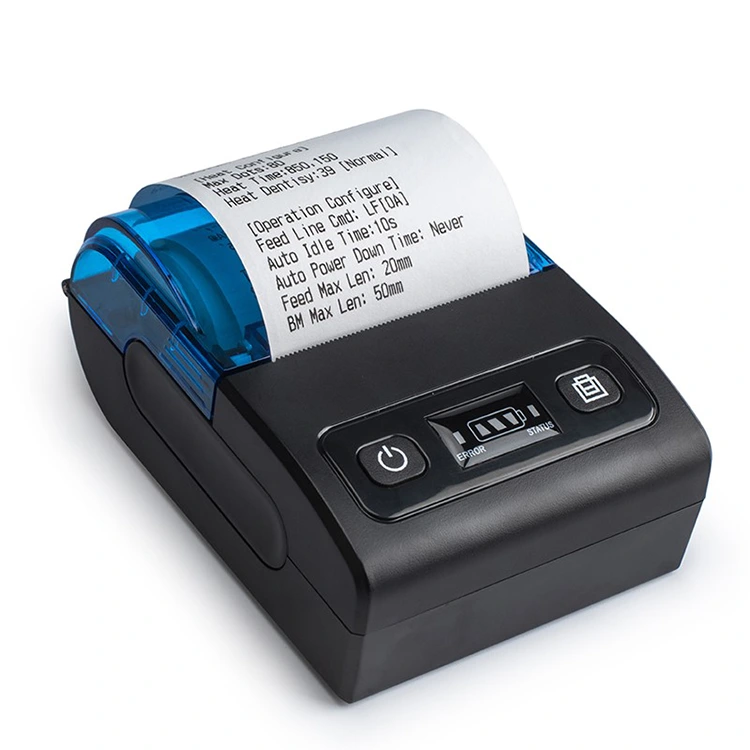
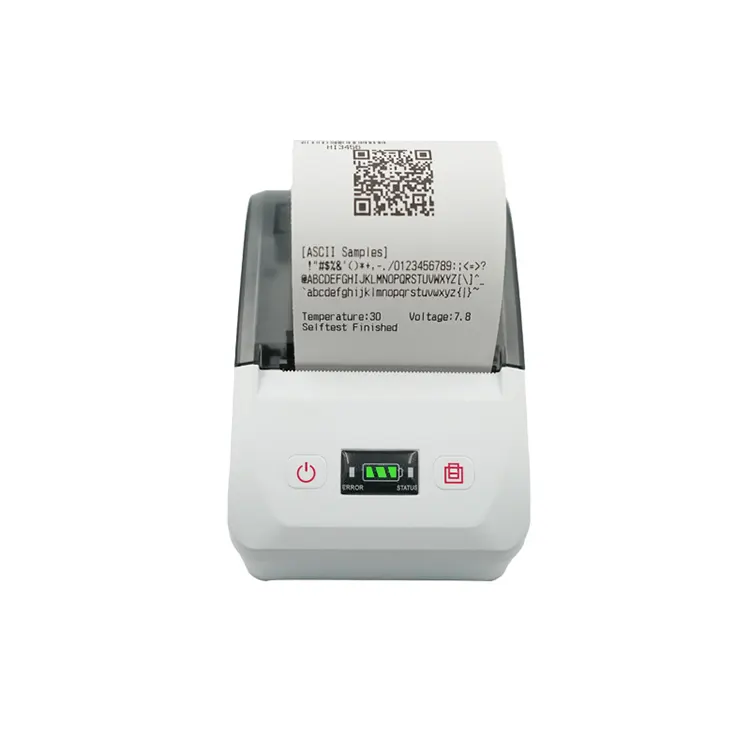
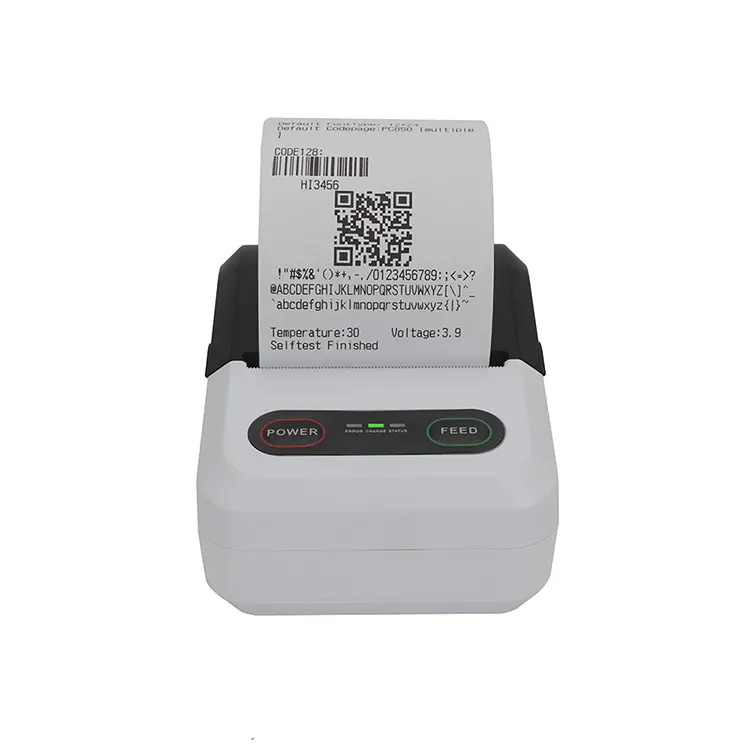
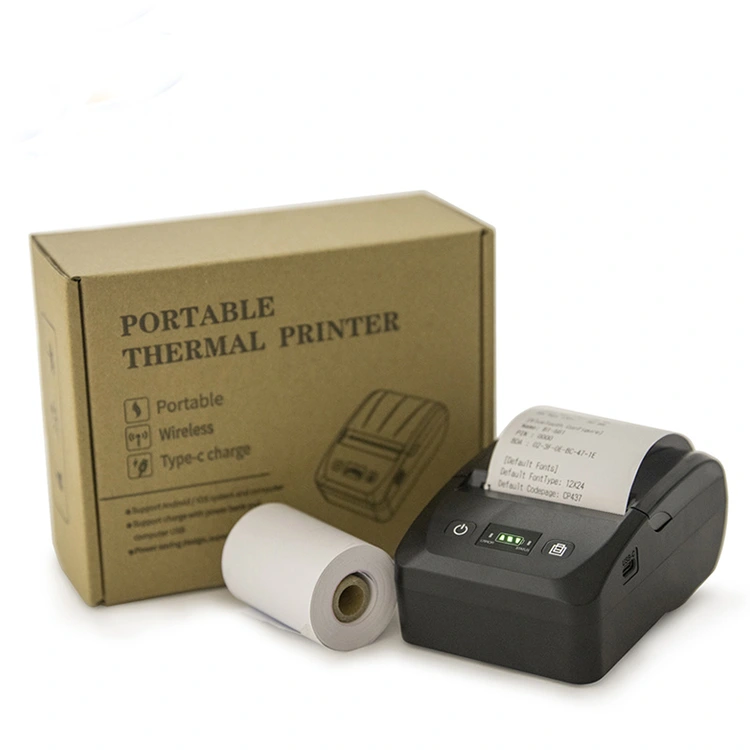
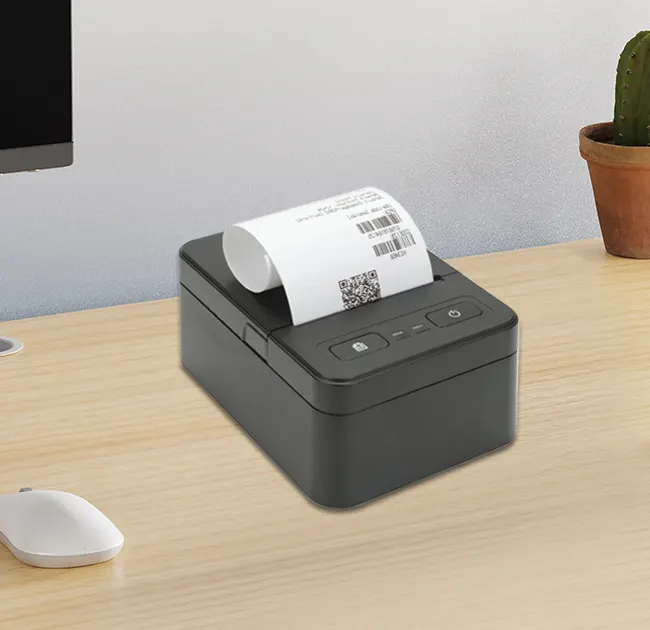
As a leading manufacturer in the field of electronic printing solutions, Peite has been committed to providing high-quality thermal printer products for over 20 years. In our experience, proper calibration of a thermal printer is essential for achieving precise and reliable printing results. In this article, we will guide you through the step-by-step process of calibrating your thermal printer and share key considerations from our factory’s perspective.


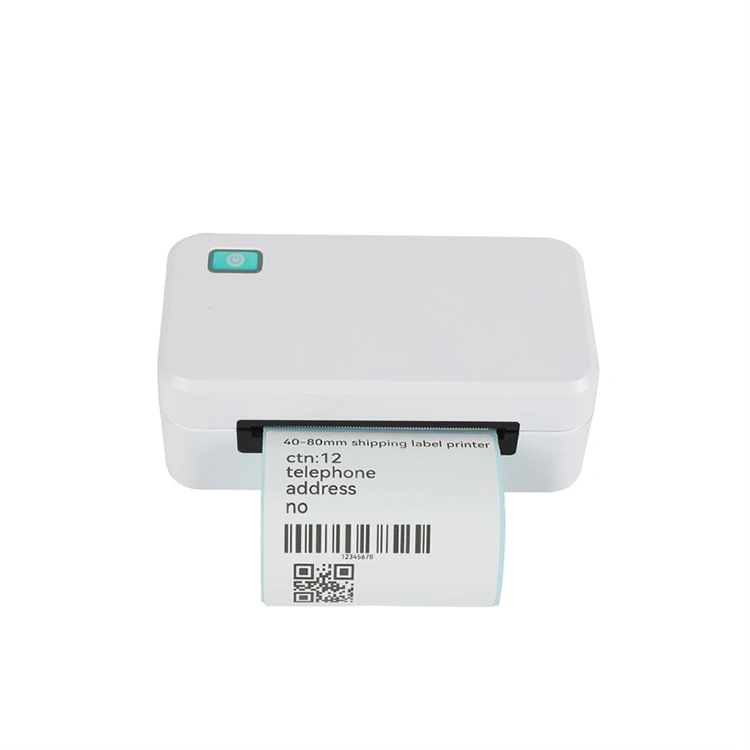
80mm thermal label printer


Understanding Thermal Printer Calibration

Calibration is the process of adjusting a thermal printer so that it accurately interprets printing commands and produces consistent output. Our thermal printer models are designed to support multiple calibration methods, ensuring compatibility with various label types and printing environments. By performing calibration, our users can prevent issues such as misaligned labels, faded prints, or inconsistent barcode scanning performance.


Why Calibration is Essential

From our factory’s standpoint, calibration ensures that every Thermal Printer operates at its optimal level. Uncalibrated printers can lead to wasted materials, reduced operational efficiency, and increased downtime. Our experience shows that regular calibration improves printer longevity and maintains professional printing quality for industrial and commercial applications.


Step-by-Step Calibration Process

Here’s a comprehensive guide on how people calibrate their thermal printer based on our factory procedures:

  1. Power On and Warm-Up: Turn on the printer and allow it to warm up for a few minutes. Our thermal printer requires a stable temperature to perform accurate calibration.
  2. Load the Correct Media: Insert the labels or thermal paper according to the manufacturer’s instructions. Ensuring proper alignment is crucial for our calibration process.
  3. Access Calibration Mode: Most of our models have a built-in calibration button or software interface. Press the calibration button on the control panel or launch the calibration program from your computer.
  4. Automatic Media Detection: Our Thermal Printer can automatically detect the label size and gap between labels. Follow on-screen instructions to allow the printer to adjust sensor settings.
  5. Test Print: After calibration, perform a test print to verify alignment, print density, and label registration. Repeat the calibration if necessary to achieve the desired accuracy.
  6. Save Settings: Once satisfied, save the calibration settings. Our factory recommends saving profiles for different media types to simplify future calibration.

Key Factors Affecting Calibration

Our experience highlights several factors that can influence the calibration of a Thermal Printer:

  • Media Type: Labels with different thickness or coating may require recalibration.
  • Environmental Conditions: Temperature and humidity can affect print quality and sensor accuracy.
  • Wear and Tear: Regular maintenance of our printers, including cleaning the print head, helps maintain calibration accuracy.
  • Software Updates: Ensuring the printer firmware is up-to-date can prevent calibration errors and improve performance.

Professional Tips from Our Factory

At Peite, we provide additional advice to help users maintain optimal printer performance:

  • Always use genuine media recommended by our factory for best results.
  • Perform calibration whenever you switch media types or labels.
  • Schedule routine maintenance and cleaning to extend the lifespan of your Thermal Printer.
  • Keep a calibration log to track settings and adjustments for different printing tasks.

Thermal Printer Product Parameters

Model BT-TP320
Printing Method Direct Thermal / Thermal Transfer
Print Width 104 mm
Print Speed 127 mm/s
Resolution 203 dpi
Interface USB, Serial, Ethernet
Media Compatibility Labels, Tags, Receipts
Memory 8 MB Flash / 16 MB SDRAM
Dimensions 220 x 200 x 150 mm
Weight 2.1 kg
Power Supply DC 24V / 2.5A
Calibration Method Manual & Automatic Sensor Detection

Common Troubleshooting During Calibration

While calibrating our Thermal Printer, users may encounter issues. Here are common problems and solutions from our factory’s perspective:

  • Issue: Print misalignment. Solution: Re-run calibration and ensure media is correctly loaded.
  • Issue: Faded print. Solution: Check print head condition and adjust print density settings.
  • Issue: Printer fails to detect label gap. Solution: Clean sensors and verify media type compatibility.

FAQ: How do People Calibrate Their Thermal Printer?

Q1: How often should I calibrate my thermal printer?
A1: Our factory recommends calibrating the printer whenever you change media types or notice misalignment. Regular calibration every 1–2 months ensures consistent print quality.

Q2: Can calibration be done manually?
A2: Yes, our Thermal Printer models support manual calibration through control panel buttons or software interface. Manual calibration is useful when automatic detection fails or for customized media sizes.

Q3: What should I do if the calibration still produces poor print quality?
A3: Our advice is to first clean the print head and sensors, then re-run calibration. If problems persist, check firmware updates and consult our technical support team.


Conclusion

Calibrating a Thermal Printer is an essential step for achieving high-quality and reliable prints. By following our detailed guidelines and leveraging our factory’s expertise, users can minimize errors, extend printer life, and maintain optimal performance. Peite (Xiamen Peite Electronic Technology Co., Ltd.) continues to innovate and provide solutions that make calibration easy and efficient. Our Thermal Printer products are designed with user-friendly features that allow both automatic and manual calibration, ensuring excellent output for all industrial and commercial applications.


Trust our experience and our commitment to quality—our team is dedicated to helping you achieve precise printing results every time you use our Thermal Printer.

Related News
Leave me a message
X
We use cookies to offer you a better browsing experience, analyze site traffic and personalize content. By using this site, you agree to our use of cookies. Privacy Policy
Reject Accept